
Sign a Document Received through Email
A complete guide on how to access, review, and legally sign documents sent to your email inbox using Systweak eSign.
Accessing the Document
When a sender uses Systweak eSign to send you a document for signature, you will receive an email notification. You typically do not need a Systweak eSign account to sign a document.
Security Verification
Always verify the sender's details before opening. Systweak eSign notifications will always come from esign@systweakesign.com, but the "Sender" name should be someone you recognize.
- Open the email notification from Systweak eSign.
- Locate the prominent button labeled Review Document or View Document.
- Clicking the link will open the secure signing environment in your default web browser.
Reviewing the Document
Before you can sign, you must review the document contents and agree to the electronic business terms.
- Electronic Record and Signature Disclosure: At the top of the screen, you may be asked to check a box agreeing to do business electronically. This is legally required to proceed.
- Navigation: Use the scroll bar or the Next button (usually located on the left or top right) to move between required fields.
- Reading: Take your time to read the document. You can zoom in using the controls at the top of the viewer.
Applying Your Signature
As you navigate the document, you will see colorful tags indicating where your input is needed.
- Click on a Sign tag to begin the signature process.
- Next, the "Generate Signature Settings" dialog will appear.
- Confirm your name and initials.
- Select a signature style, draw your own, or upload an image of your signature.
- Click Apply and Preview to apply it to the document.
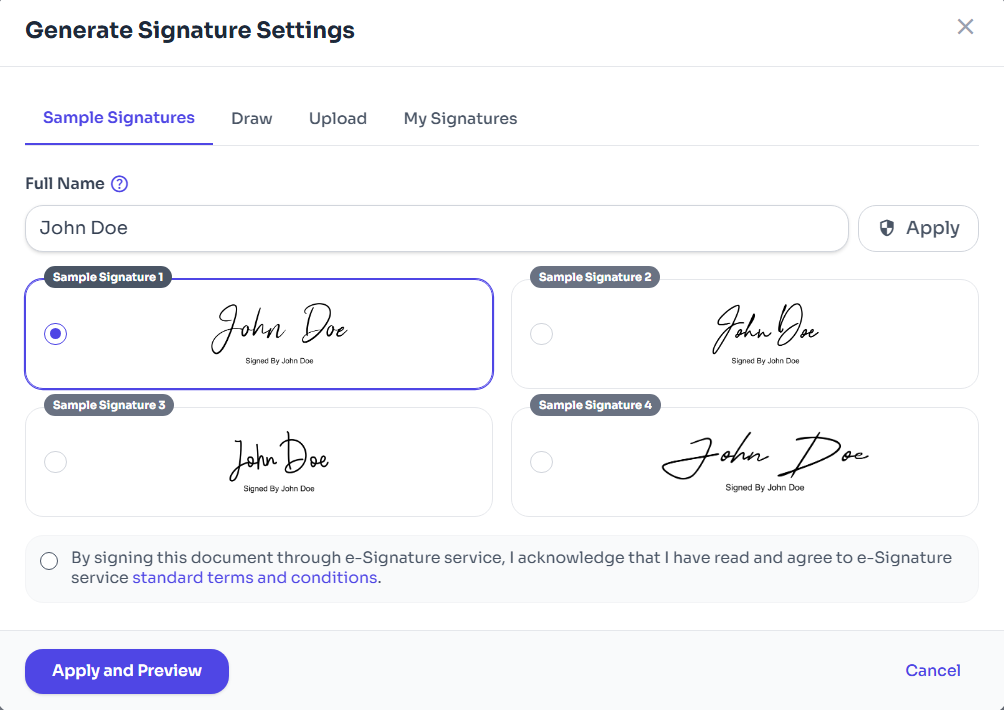
Figure 1: Select Signature Style.
Completing the Signing Process
Once you have filled in all required fields and applied all signatures:
- A Finish button will appear, typically at the top or bottom of the page.
- Click Finish to complete the document.
- You will see a confirmation screen.
- You will automatically receive an email with a PDF copy of the signed document for your records.
Troubleshooting Common Issues
Running into problems? Here are solutions to common signing hurdles:
Link Expired
Security links expire after a set time. Click the link to request a fresh one sent to your email.
Access Code Required
The sender protected the doc. Ask the sender for the code.
Wrong Name
If your name is spelled wrong, do not sign. Contact the sender to correct and resend.
Nothing Happens
If clicking "Finish" does nothing, check for missed required fields marked in red.
list_alt On This Page
Related Articles
Need more help?
If you can't find what you're looking for, our support team is here to assist you.
Contact Support