
How to self-sign a document
Learn the quick steps to upload and sign your document. Self-signing allows you to complete documents yourself without adding signers. This guide walks you through the process from start to finish.
Step 1: Uploading your document
Start by navigating to the Dashboard and clicking the "Sign Yourself" quick access button in the center.
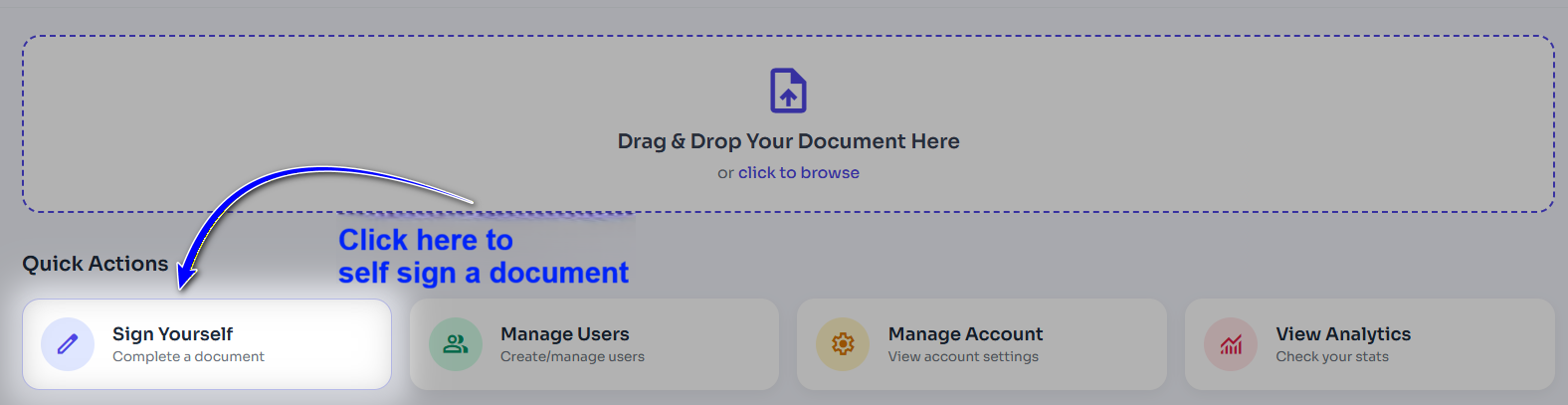
Figure 1: Dashboard Self Sign button.
You can upload a PDF document file. You’ll see an option to either drag & drop your PDF document into the designated area or click the Browse Files button to locate the file on your device. Ensure that your document is in PDF format and does not exceed the maximum size of 20 MB.
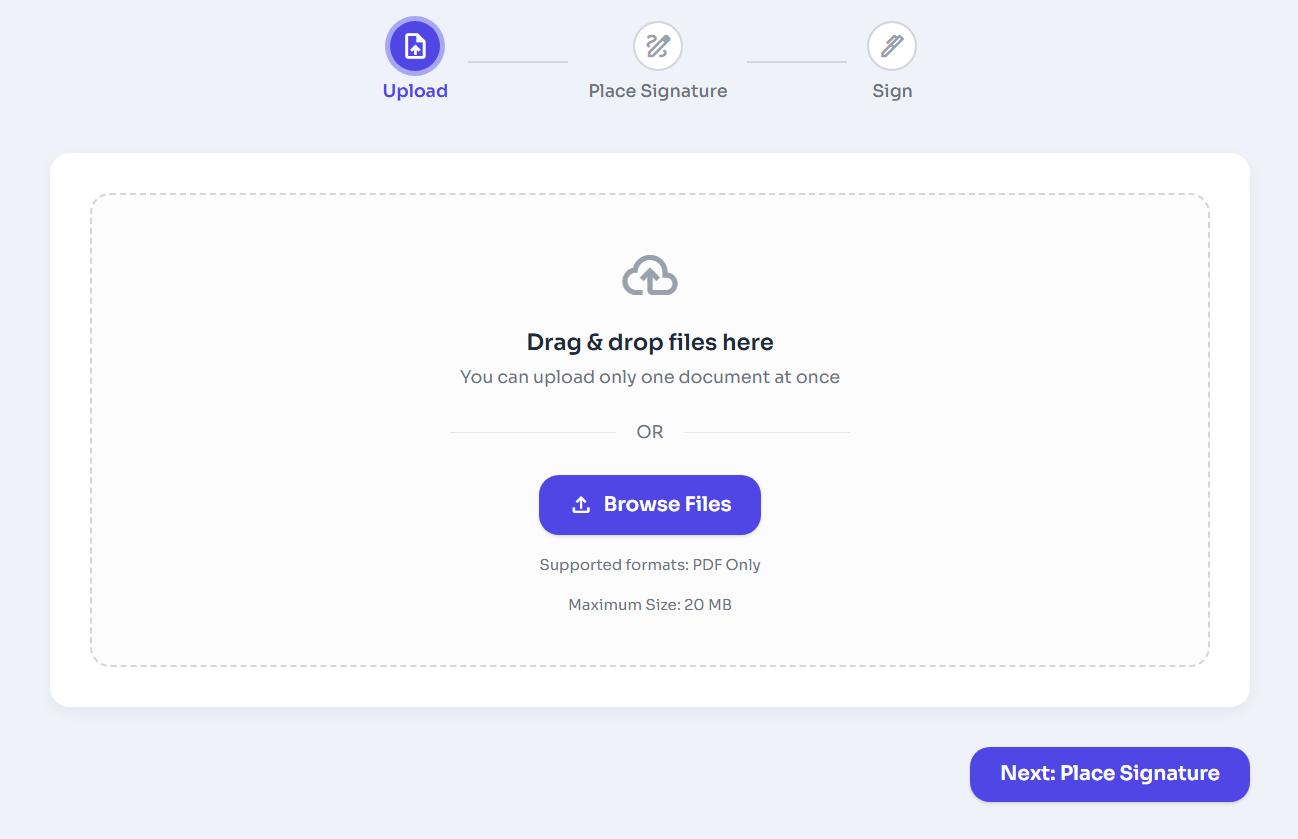
Figure 2: Upload PDF Document to self-sign.
Step 2: Place Signature Fields
After uploading, you’ll be taken directly to the document editor.
Drag and drop fields from the left sidebar onto your document. Commonly used fields include:
Signature
The primary signature field.
Date Signed
Auto-populates when signed.
Text Box
For names, addresses, etc.
Numbers
For numeric selections.
Position each field where you need to complete the document.
Or you can check the Invisible Signature option without adding Signature placeholder to add eSignature
Step 3: Sign the Document
Click on Signature placeholder and add a custom signature or if you selected Invisible Signature option, you can directly click on Sign & Finish button to sign the document.
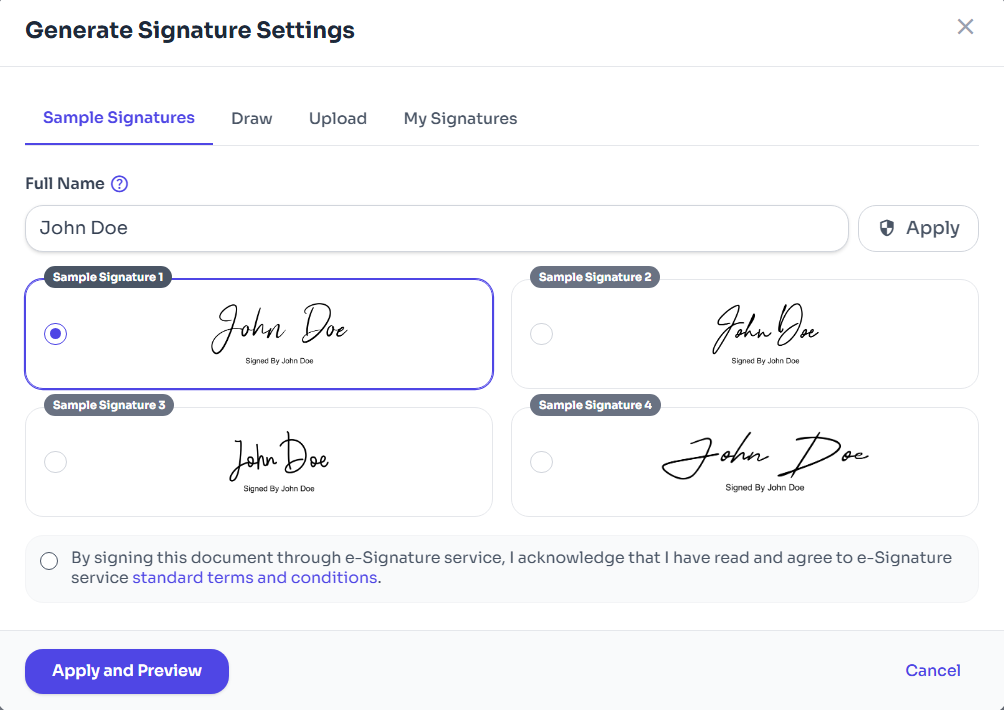
Figure 3: Select Signature Style.
To apply your signature:
- Click the yellow Sign tag.
- Next, you will be asked to adopt a signature style (draw, type, or upload).
- Once adopted, clicking the tag will instantly imprint your signature on the line.
- Repeat this process for all Textbox and Numbers fields (name, email and date signed fields populate automatically).
After all mandatory fields are completed, you can click "Sign & Finish" button on the top right of the screen.
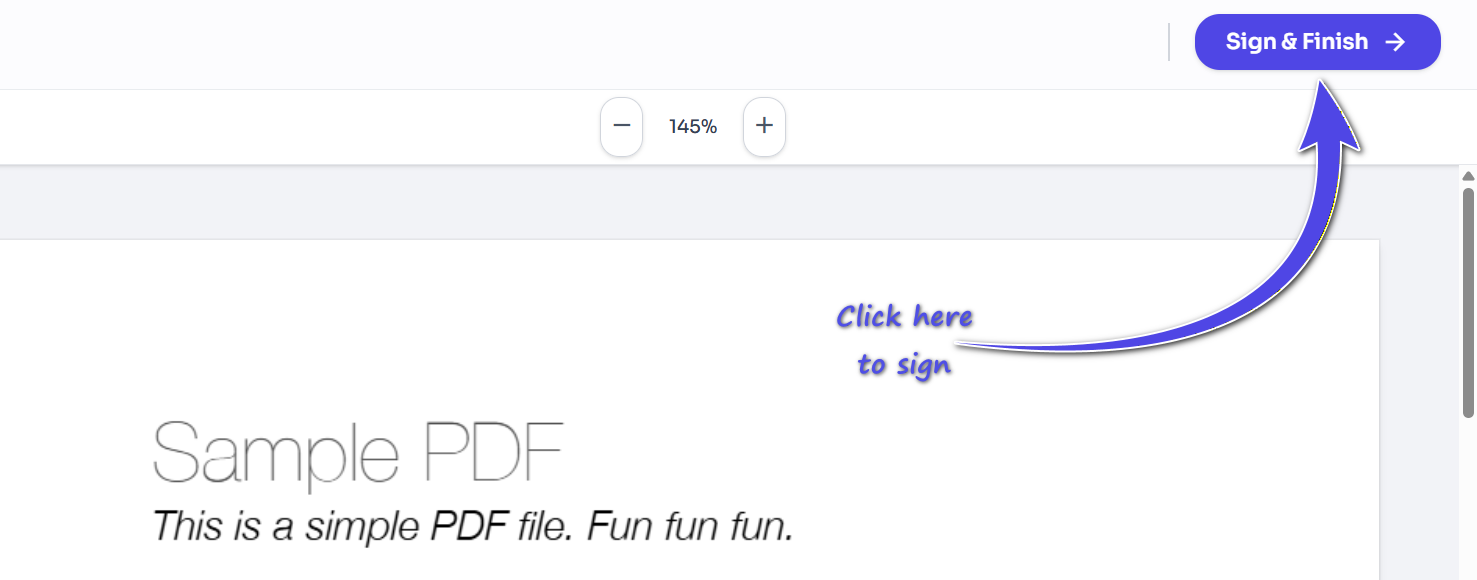
Figure 4: Self Sign Finish Area.
After signed successfully, you will see a confirmation message and have the option to download the signed document or return to the dashboard.
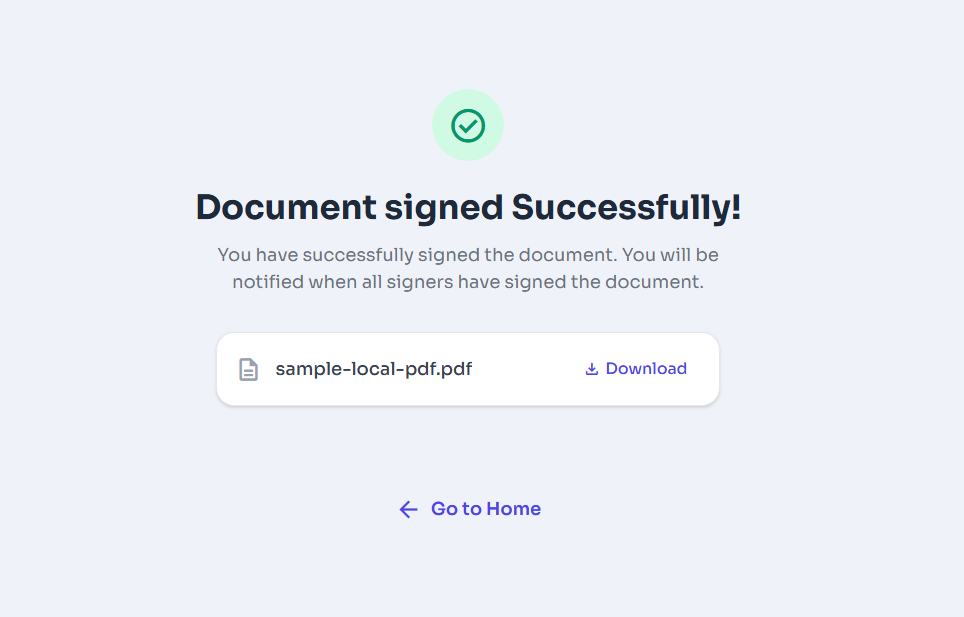
Figure 5: Document Signed Successfully.
list_alt On This Page
Related Articles
Need more help?
If you can't find what you're looking for, our support team is here to assist you.
Contact Support