
Managing Your Document List
Efficiently organize and track all your document in one place. The document management dashboard provides powerful tools to search, filter, and take action on your agreements.
Understanding the Document List
The document list is your central hub for tracking the status of all sent, received, and completed documents. Each row represents a document and displays key information at a glance.
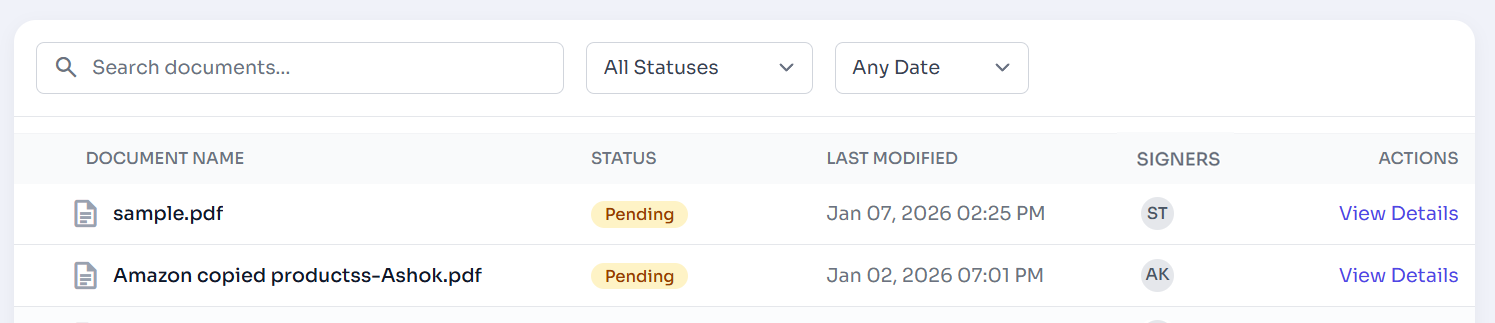
Figure 1: The document list view with search and filter controls.
Using Search and Filters
When managing a large volume of agreements, finding specific documents quickly is essential. The top bar of the document list provides robust filtering capabilities:
- Search Bar: Type keywords from the document name to instantly filter the list.
- Status Filter: Toggle between 'Pending', 'Completed', 'Partially Signed', or 'Declined' to see documents in specific stages.
- Date Range: Narrow down results by the date they were last modified or sent.
- Sender Filter: Quickly switch between viewing documents you sent versus those sent by others.
Quick Access
Clicking on the column headers (e.g., "Last Modified") will sort the list in ascending or descending order, helping you find the most recent activity first.
Performing Actions on Documents
The "Actions" column provides direct access to common tasks for each document. Depending on the document's status, you might see options to:
- View Details: Open the document details to review its contents and audit trail.
- Open: It will open a draft document for editing.
list_alt On This Page
Related Articles
Need more help?
If you can't find what you're looking for, our support team is here to assist you.
Contact Support